


I've uploaded a patch to the activity and it should be available in the library soon.
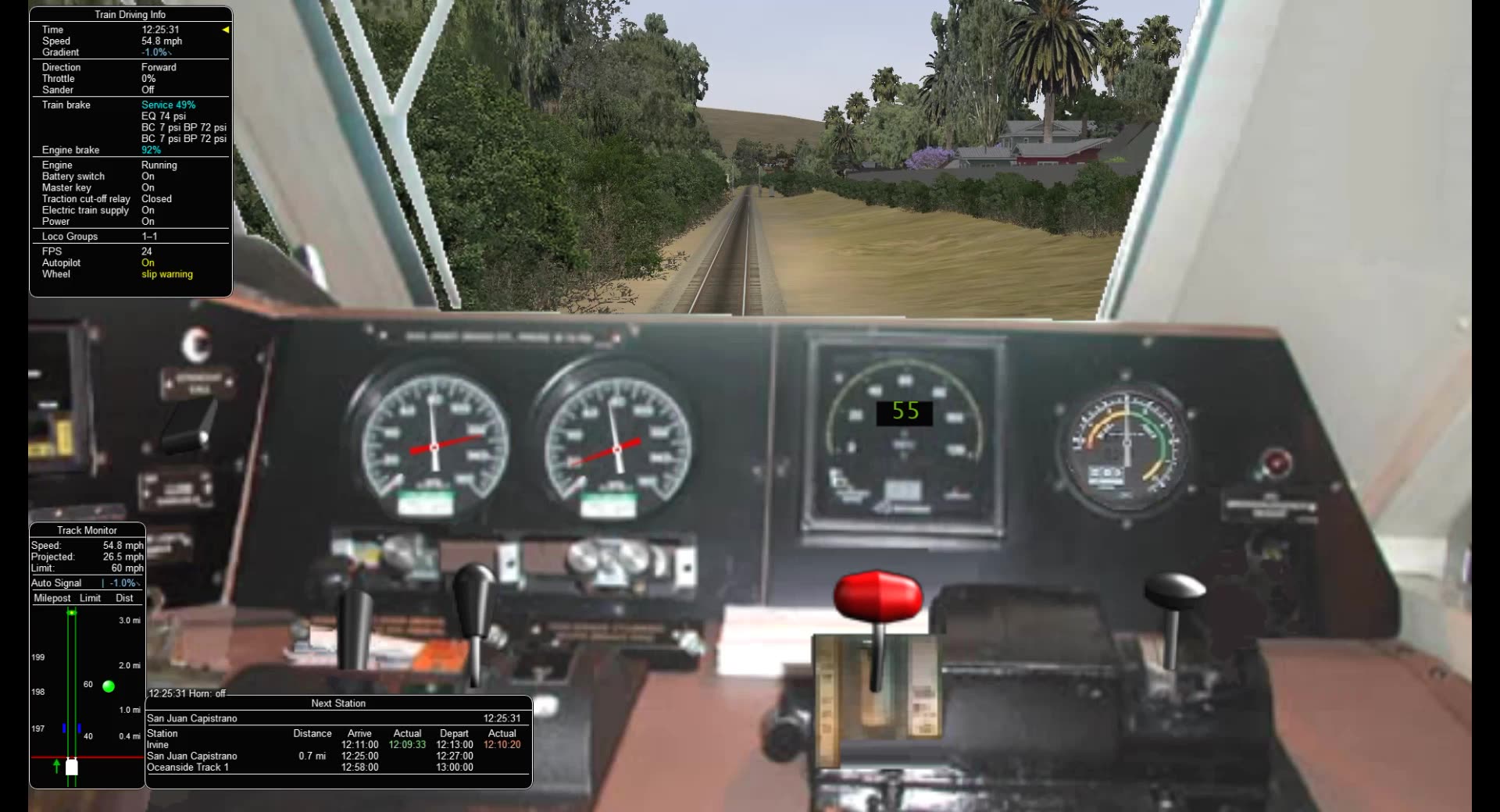
"eliminated all references to the BNSF MOW truck, took out it's service reference in the activity file, removed the service file and path file for it also." will probably correct the issue with the stop at the Red Signal waiting for Amtrak 573 to pass. The reason for the "standoff" is because the player train reached the trigger to release the BNSF MOW Truck before the Truck reached the wait point on the path. Both the truck and the AMTK 573 had been set to start at 12:00 noon, however in testing I found that i would reach the trigger for the truck before the truck reached the wait point. I reset the start time for those two ai trains (the truck and AMTK573) to 11:30 am allowing both enough time to hit the wait points well before player reaches the trigger events. In the original download the activity file was correct, but the traffic file was incorrect. If you opened the activity with TSRE, there was a possibility that hitting save at that point in TSRE, could over-write the correct traffic data with incorrect traffic data and that would cause the issue folks were seeing....I'm not saying it happens every time...but there is a possibility. (there is an issue with traffic in TSRE, but I've figured a work around when using it....however you have to follow the workaround every time or there's a possibility of the traffic file and the activity file not equal..sort of....anyway)
i've also created a Github backup of the activity and all the files (including all the trainset equipment used) is available through github...
GITHUB Installation:
link to Github Repository: https://github.com/amtrak115/Activites Currently there is only one activity in the Repository.
1. Download the entire repository to a temp space on your system. (I've found the Github Desktop works the best for this), Then copy the files to the appropriate folders in your Train Simulator\Routes\surfliner folders. Note: in the TRAINS/TRAINSET folder on the github repository, all equipment necessary for this activity is included. (All of which is available from trainsim.com. All rights for these equipment files are retained by the original author as described on Trainsim.com.
or alternatively....
2. Download the Amtrak 572 release. (located on the right side of the page) A single zip file will be downloaded. Then copy the files to the appropriate folders in your Train Simulator\Routes\surfliner folders. Note: in the TRAINS/TRAINSET folder on the github repository, all equipment necessary for this activity is included. (All of which is available from trainsim.com. All rights for these equipment files are retained by the original author as described on Trainsim.com.
later
Amtrak115
"eliminated all references to the BNSF MOW truck, took out it's service reference in the activity file, removed the service file and path file for it also." will probably correct the issue with the stop at the Red Signal waiting for Amtrak 573 to pass. The reason for the "standoff" is because the player train reached the trigger to release the BNSF MOW Truck before the Truck reached the wait point on the path. Both the truck and the AMTK 573 had been set to start at 12:00 noon, however in testing I found that i would reach the trigger for the truck before the truck reached the wait point. I reset the start time for those two ai trains (the truck and AMTK573) to 11:30 am allowing both enough time to hit the wait points well before player reaches the trigger events. In the original download the activity file was correct, but the traffic file was incorrect. If you opened the activity with TSRE, there was a possibility that hitting save at that point in TSRE, could over-write the correct traffic data with incorrect traffic data and that would cause the issue folks were seeing....I'm not saying it happens every time...but there is a possibility. (there is an issue with traffic in TSRE, but I've figured a work around when using it....however you have to follow the workaround every time or there's a possibility of the traffic file and the activity file not equal..sort of....anyway)
i've also created a Github backup of the activity and all the files (including all the trainset equipment used) is available through github...
GITHUB Installation:
link to Github Repository: https://github.com/amtrak115/Activites Currently there is only one activity in the Repository.
1. Download the entire repository to a temp space on your system. (I've found the Github Desktop works the best for this), Then copy the files to the appropriate folders in your Train Simulator\Routes\surfliner folders. Note: in the TRAINS/TRAINSET folder on the github repository, all equipment necessary for this activity is included. (All of which is available from trainsim.com. All rights for these equipment files are retained by the original author as described on Trainsim.com.
or alternatively....
2. Download the Amtrak 572 release. (located on the right side of the page) A single zip file will be downloaded. Then copy the files to the appropriate folders in your Train Simulator\Routes\surfliner folders. Note: in the TRAINS/TRAINSET folder on the github repository, all equipment necessary for this activity is included. (All of which is available from trainsim.com. All rights for these equipment files are retained by the original author as described on Trainsim.com.
later
Amtrak115



Comment